
Multi Monitor Wallpaper Screen Layout Tips
Multi Monitor wallpaper provides multiple ways for you to adjust your screen layout. From easy dragging to very precise keyboard controls. You can customise the layout, as well as details about your screens.
Layout
1) Easy Layout Buttons
Use the layout buttons to get started.
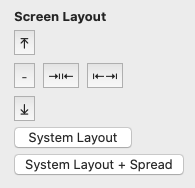
The System Layout simply copies your default system layout
System Layout + Spread uses the system layout, but expands things a little so that there is a gap between your screens.
You can use the alignment buttons (up, down and -) to align the tops, bottoms or centres of your screens.
2) Just drag the screens
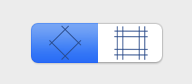
You can click on the grid background for each screen and simply drag it around. This is the easiest and quickest approach if you need to adjust things manually. You can use the horizontal and diagonal lines to line your screens up pretty accurately.
You can click on the grid selector at the bottom of the window to change your grid type
2) Drag in the window
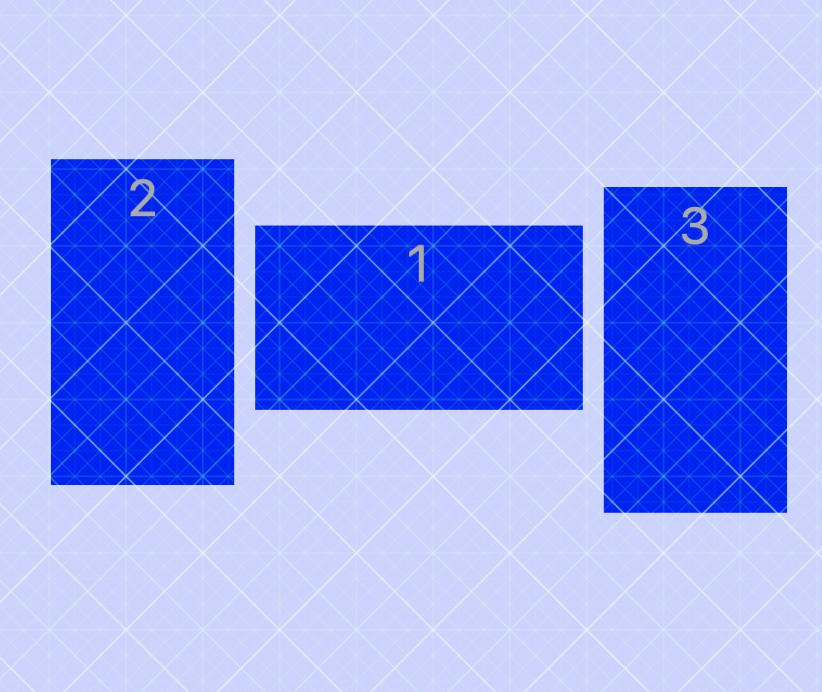
Drag the screens in the main window as an alternative method to adjust their position.
You can hold down the shift key to lock the movement in the horizontal/vertical directions
3) Fine Control – Keyboard
You can use the keyboard for pixel-by-pixel adjustments.
Click on a screen in the main window, then use the arrow keys to move it.
You can hold down the keys but be patient, you’re literally moving a pixel at a time!
Screen Configuration
Normally, the system gets the size of your screens about right and Multi Monitor Wallpaper will use those sizes.
Sometimes though – the details are a bit off, and you might want to adjust them manually.
Simply click on the dropdown to pick the screen you want to adjust (you can see the numbers in the main window). Click ‘Adjust’ and you can manually enter the width in mm of your screen.
Get Creative
You can get creative with your layouts!
For example, one user has a row of six screens in a grid, and a separate screen on the other side of the room.
Your layouts don’t have to match the real world. I advised him to set up his 6 ‘grid’ monitors in a normal grid pattern. Then to adjust the size of the ‘extra’ monitor so that the system thought it was really large and put it ‘on top’ of the other monitors
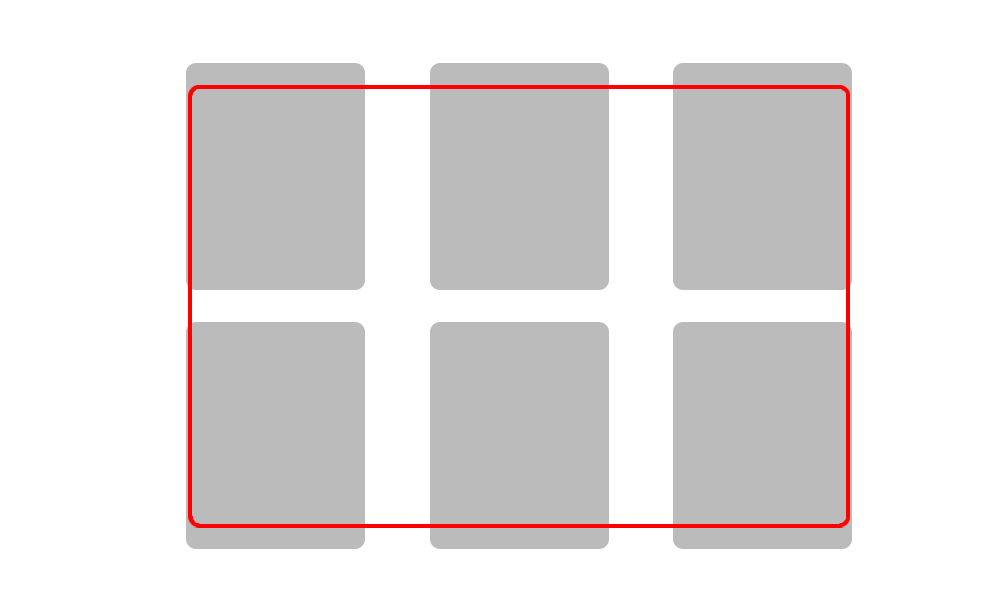
This way, the grid monitors get a wallpaper spread across them in the normal way, but the ‘extra’ monitor gets almost the whole image as the background.