
Multi Monitor Wallpaper – Reset File Access
This fix typically works if:
- You can set wallpapers manually
- The autochanger doesn’t work
- You’re using a folder on your computer as a source of images for the autochanger
Before you try this fix – you might want to try Reseting the Wallpaper Database first.
What to do
This fix makes sure that MMW has access to the folder where your images are stored.
It does this by temporarily allowing MMW to access any folder on your computer.
- Open the System Preferences App
- Click on ‘Security and Privacy’
- Click on the ‘Privacy’ tab
- In the left hand pane, scroll down to find ‘Full Disk Access’
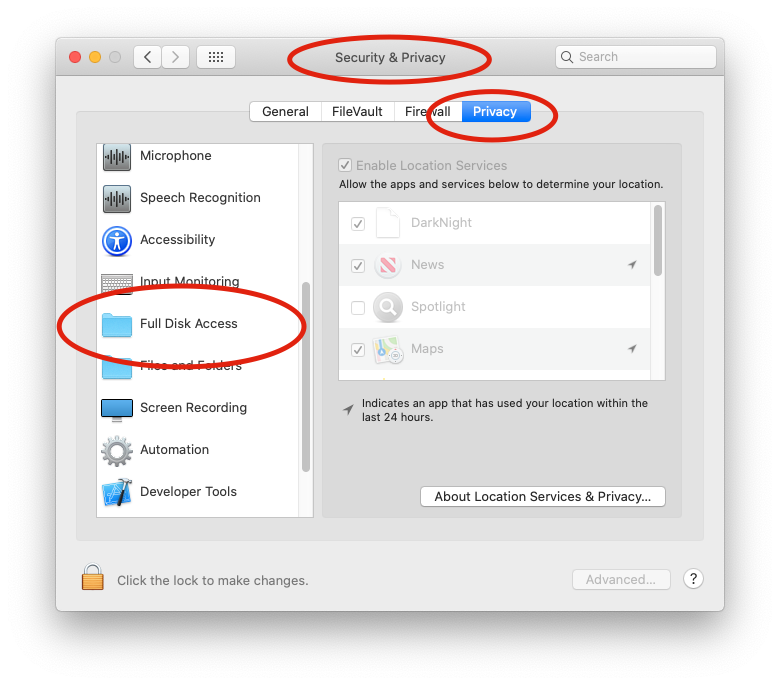
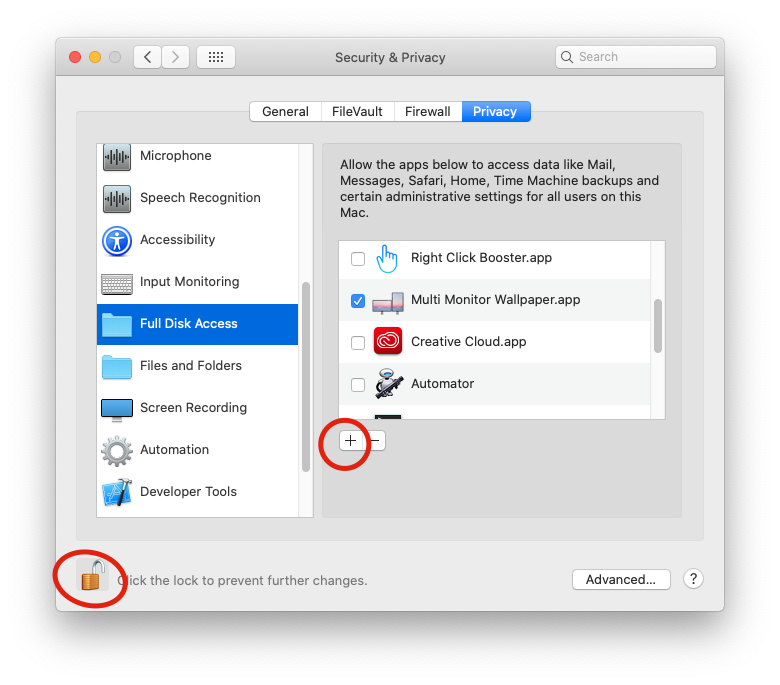
- Click on the lock at the bottom left and authenticate
- Click on the ‘+’ icon to add an app
- Add Multi Monitor Wallpaper
- Select the ‘Quit Now’ option when the system tells you that Multi Monitor Wallpaper will not have full access until it is quit
- Relaunch Multi Monitor Wallpaper and check that it works
- Remove Full Disk Access from Multi Monitor Wallpaper
(step 9 is optional, but it is a good idea as MMW doesn’t need this access generally)